Link Meteor: grab links, keep their words
Published
Capture the trail. Keep the source.
Link Meteor is a free Chrome extension for collecting links. Drag a box over any part of a webpage, and every link inside it is saved with its anchor text, its exact URL, and the page it came from, ready for a spreadsheet, a document, a reference manager, or your bookmarks.
Lots of extensions can grab links. Link Meteor is for the times when the details matter:
- The words stay with the link. Anchor text and URL are saved as separate fields, never merged and never swapped for the destination’s title. “Download PDF” stays “Download PDF”, a link with no text stays empty, and the same address linked twice under two labels is kept twice.
- Research tools, built in. It reads DOIs, arXiv IDs, PubMed IDs, and ISBNs from addresses, and it exports BibTeX, RIS, CSL-JSON, an annotated bibliography, or an Obsidian note. New in 1.0, it also reads the links inside PDFs.
- Clean exports. Real Excel workbooks, CSV, TSV, Markdown, HTML, JSON, and plain URL lists; rich links for Google Docs, Word, and Notion; Chrome bookmark folders; or up to 500 links opened in tabs at once.
- Free and private, with no catch. No account, no ads, no tracking, no paid tier, and no server. Your collections stay in your browser.
It’s made for research: reading lists, literature reviews, and source lists. The same tools work just as well for admin panels, ticket queues, and product lists.
See it on a real page
A 28-second recording of version 1.0.0 on Link Meteor’s practice page: a region selected and saved, the separate fields, and an Excel export. The captions are part of the picture. The 70-second video on Link Meteor’s website also shows grouping by URL and the links inside a PDF.

Try it here
Below is a copy of the reading list from Link Meteor’s practice page. Press and drag across it, the way you would on a real site with the extension installed. On a phone, tap Drag with touch first, or use Select all.
Click any link in the result to see everything saved with it. A few things to notice:
- “Download PDF” stays “Download PDF”. Link Meteor never visits a link’s destination to look up a nicer title. The anchor text is what the page called the link; the destination’s own title is a different fact.
- The image link has no text, so its anchor text stays empty, and the image’s label, “Canopy coverage map”, goes in a separate field.
- The first link and “the canopy study” point to the same paper. Both are kept, each with its own label. Tick Group by URL to fold them together, and untick it to get both back. Grouping is a view; nothing is merged or thrown away.
Why I built it
I collect links constantly: papers for classes and research, documentation, datasets, and sources for whatever I’m writing. For years, I used Link Grabber, a Chrome extension that lets you hold Command and drag across a page, very intuitively, to grab its links.
But after a mid-2026 update, the extension uses freemium pricing with usage limits. So, I decided to make my own and share it with the world. For free, forever, for real.
Oh, and it’s way better than Link Grabber.
Before Link Meteor, extensions for collecting URLs frequently failed to figure out what a link should turn into after the grab. A bare URL forgets what the author called it. “Surface temperature and tree canopy in 40 mid-sized cities” becomes doi.org/10.5555/uhi.2024.0142, a “Download PDF” button becomes a file path, and a reading list becomes a column of addresses you have to open one by one to understand. Bookmark managers and tab savers do keep a title, but it’s the destination’s own title, which is not always the same as what the citing page originally called the link.
I wanted a tool that treats a link the way a careful researcher would: anchor text and URL as two fields, plus when and where the link was found. Then I wanted everything that comes next: collections, notes, citations, and exports for every tool I use.
When Link Meteor fails, it says so. The extension will never quietly lose, merge, or invent anything.
And it’s private: there’s no account or server anywhere to collect your personal data, slow you down, bombard you with ads, or lock features and functionalities behind a paywall.
“Freemium?” Forget that.
What else is out there
Link Meteor isn’t the first tool in this space, and it owes a lot to the ones before it. Here’s where the tools people usually reach for stand, as of November 2026, going by each one’s store listing, website, or source code:
| Tool | What it’s for | Keeps link text? | Saves and exports | Cost and data |
|---|---|---|---|---|
| Link Grabber | Grabbing links by dragging, from whole pages, or by crawling a site | Not stated | CSV, text, clipboard, and bookmarks | A trial of 20 link actions, then $5 a month or a lifetime license; sends usage analytics |
| Linkclump Plus, a fork of the original Linkclump | Dragging over links to open, copy, or bookmark them | Yes, when copying | Clipboard and bookmarks only | Free |
| Link Gopher | Listing every link on a page | No: URLs only, sorted, with duplicates removed | A list to copy | Free |
| Web Scraper and Instant Data Scraper | Scraping page data into tables | Only if you set it up per site, or the scraper guesses it | CSV and Excel | Free extensions; Web Scraper’s cloud plans are paid |
| Zotero Connector | Saving papers and pages to a reference library | Not its job: it saves items, not the links on a page | BibTeX, RIS, and CSL-JSON, through Zotero | Free |
| OneTab, Session Buddy, and Raindrop.io | Saving tabs and bookmarks | Page titles, not link text | Varies | OneTab and Session Buddy are free; Raindrop.io needs an account and has a paid tier |
| Link Meteor | Links with their words, sources, and citations | Yes, as its own field | 12 file formats, the clipboard, and bookmarks | Free, with no account, server, or analytics |
Every one of these does something well. Link Grabber does the most, down to crawling whole sites, but after its trial (20 link actions or 1,000 links), the main features cost $5 a month or a one-time lifetime fee, and its privacy policy says it sends usage analytics that can include the address of the page you used it on. Linkclump Plus is free and fast, but its job ends at the clipboard. Zotero is built for managing references, so it saves papers and pages, not the links on a page.
What I couldn’t find anywhere was the combination: link text and URL as separate fields, every occurrence kept with the page it came from, collections you can curate, and citation exports, all free, with nothing sent anywhere. Link Meteor is that combination.
From one paragraph to every open tab
A region is the quickest way in, but you choose how much to collect, and Link Meteor shows the scope before it captures:
- A region: press Option+Shift+L on a Mac (Alt+Shift+L on Windows and Linux) and drag. Scroll while dragging to reach more, or add another region.
- Hold a key and drag: hold Z, or Command on a Mac and Ctrl elsewhere, and drag on any site you’ve allowed. One choice allows every site, with a list of sites to skip. Typing in a text field never triggers it.
- This page: every loaded link, including links inside closed web components and frames.
- Tabs and windows: tabs you pick, this window, or every window, up to 100 tabs per capture, each with its own result. Or save the tabs themselves as links.
- A PDF: from a PDF’s tab, or a PDF file on your computer.
New in 1.0, there are three bigger captures, each with a counter, a Stop button, a stated limit, and one Undo: Scroll to the end first for pages that load more as you scroll (up to 50 screens), Follow Next through up to 20 pages, and Capture their pages… for up to 20 links you choose. None of them crawl. They go one level deep at most, and the links they find are saved, never followed.
When a page can’t be read, Link Meteor says so. A capture across several tabs reports each one separately, and a page with no links is never confused with a page it wasn’t allowed to read.
Keep it organized
Captures land in named collections saved on your computer. Review them in Chrome’s side panel next to the page you’re reading, or in a full view with anchor text, URL, and source in their own columns.
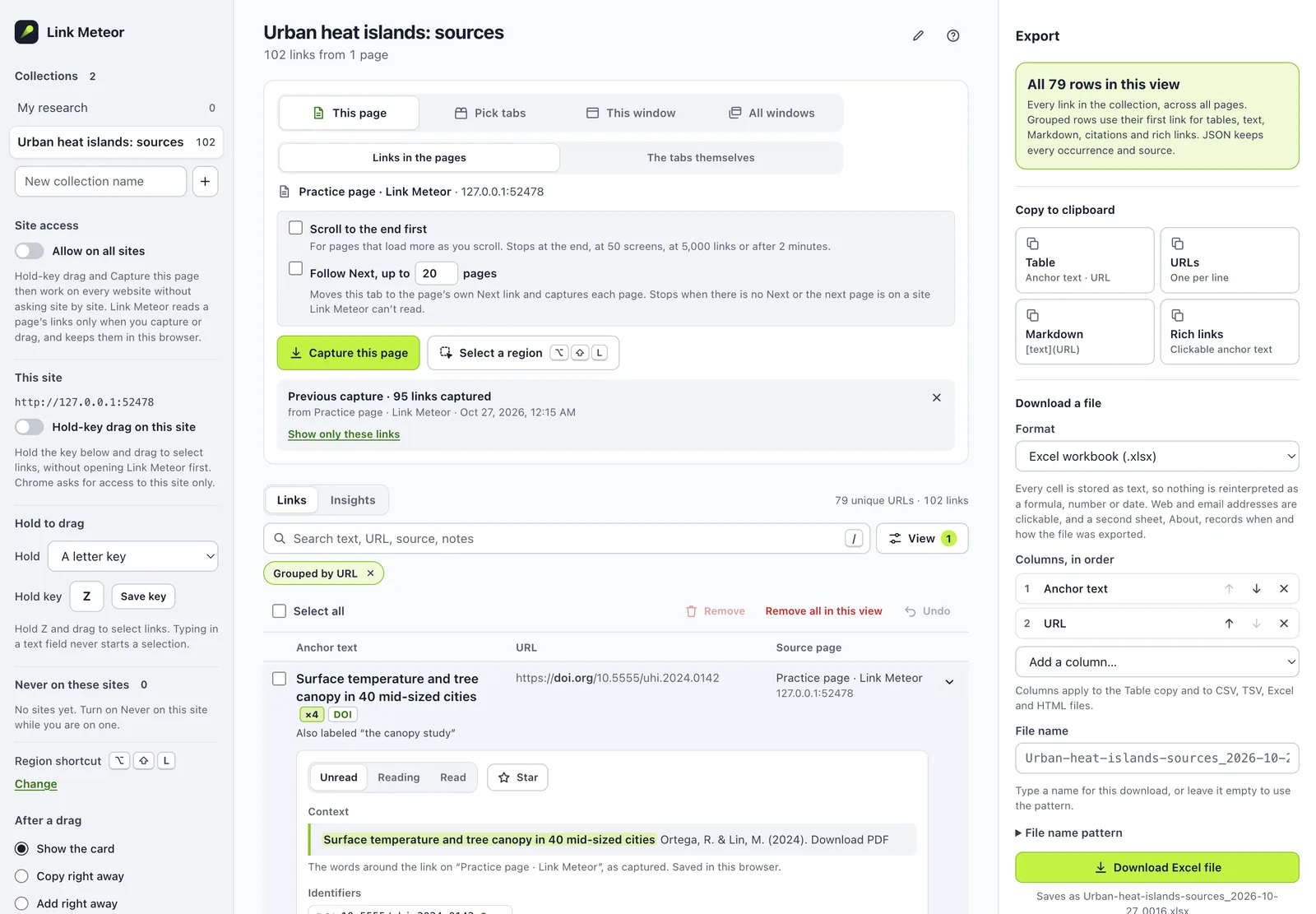
- Search anchor text, URLs, source pages, the words around each link, notes, and tags.
- Filter by site, by file type, or by links that stay on the source site.
- Add notes and tags, mark links Unread, Reading, or Read, and star the ones that matter.
- Add up to 20 columns of your own, such as a deadline or a contact, and fill one in for many links at once.
- Move or copy links between collections, or import them from spreadsheets, PDFs, bookmarks, or pasted text.
- See a collection at a glance in Insights: its sites, file types, reading status, repeats, and captures by week.
- Undo removals, imports, and moves, and back up every collection to one file.
Take it anywhere
Copy two clean columns straight into a spreadsheet, or download a file in whatever format your next tool wants. This preview runs Link Meteor’s own export code on the links you selected above:
A few details that matter when you open the file:
- A CSV cell that looks like a formula starts with an apostrophe, so a spreadsheet won’t run it.
- In an Excel workbook, every cell is stored as text, so a label like “3-4” never turns into a date.
- An empty anchor stays empty in Markdown instead of being filled with the URL.
- Files are named after the collection and the time by default, and you choose which columns go out, in what order.
Made for research
Link Meteor reads the identifiers that addresses already contain: DOIs, arXiv IDs, PubMed and PMC IDs, and ISBNs. When you capture from a paper’s own page, it also keeps the citation details that the page publishes about itself (title, authors, date, and journal), along with the words around each link. Paste a link below to see what it can read from the address alone:
Notice what’s missing: no authors and, for most links, no year. Link Meteor never visits a link’s destination to fill those in. If you want them, Page details lookup can fetch them, but it’s off until you turn it on, it runs only when you click Look up details, and it sends nothing but the DOI, arXiv ID, or PubMed ID to Crossref, DataCite, or NCBI.
The links inside PDFs
Papers link to their data, code, and references, and those links are usually stuck inside the PDF. On a PDF’s tab, Capture this PDF reads each link with the words under it, the page it’s on, and the words around it, or, in a reference list, the whole reference. A preview shows everything before anything is saved. Try it with the practice paper, or with any PDF on your computer:
It works the other way, too: select links to PDFs, and download them as one ZIP or combine them into one PDF in the order you choose.
Private by construction
Link Meteor has no server to send anything to. Chrome stores your collections on your computer, and Link Meteor visits a site only when you ask it to: to open a link, download a file, read a PDF, or capture a page. Site access is optional, and the only feature that sends anything anywhere is the lookup above, which stays off until you turn it on. How it’s built explains how that’s enforced.
Install it
Link Meteor isn’t in the Chrome Web Store yet, so it installs by hand, in about two minutes:
- Download Link Meteor 1.0.0 (a 3 MB ZIP), and unzip it into a folder you’ll keep.
- Open
chrome://extensions, and turn on Developer mode. - Choose Load unpacked, and select the unzipped folder.
- Pin Link Meteor to the toolbar, open the practice page, press Option+Shift+L (Alt+Shift+L on Windows and Linux), and drag across a section.
The installation guide has a video walkthrough and explains how to update from an earlier version. Bugs and ideas go to GitHub issues.
How it’s built
Link Meteor is plain JavaScript: ES modules, HTML, and CSS, written for Chrome’s Manifest V3, with no framework, no bundler, and no npm dependencies. Here’s the stack, and why each piece is there:
| Piece | Built with | Why |
|---|---|---|
| Extension | Manifest V3: a service worker, a page script injected when you use it, and Chrome’s side panel | The page script draws inside a shadow root, so a page’s styles can’t break Link Meteor, and Link Meteor can’t break the page. |
| Permissions | activeTab, plus optional permissions | Installing asks for almost nothing, and your click gives access to the page you’re on. Site access, tabs, bookmarks, and downloads are asked for by the feature that needs them, with the reason on screen. |
| Saved data | chrome.storage.local, behind one queue | Collections stay on your computer, and two saves can never race. |
| Core | Plain modules with no access to Chrome or the page | Unit tested in Node. The same code runs the website’s export preview and the demos in this post. |
| Excel and ZIP files | Small writers of its own | No dependencies, and full control over text-typed cells, a bold frozen header, filters, and real hyperlinks. |
| PDFs | Mozilla’s PDF.js, unmodified and pinned to one version | A proven PDF reader. A test checks its files’ hashes, and it loads, in one worker, only when you read a PDF. |
| Page details lookup | A sandboxed page that can reach three addresses | Everywhere else, the extension can’t make network requests at all. |
| Website | Static HTML, CSS, and JavaScript on GitHub Pages | Self-hosted fonts and no third-party requests: the same rules as the extension. |
| Tests | Node’s test runner, Playwright driving Chrome for Testing, Python’s openpyxl, and GitHub Actions | The browser tests load the real extension, and every pull request runs them on macOS, Windows, and Linux. |
| Minimum Chrome | Chrome 116 | The first version that lets an extension open its side panel from its own toolbar button (chrome.sidePanel.open). |
No framework, no dependencies. Link Meteor’s screens are panels, lists, and forms. Its hard parts are Chrome’s APIs and file formats, where a framework wouldn’t help. Without a build step, the extension you install is the source code, copied as is: quick to load, easy to read, and nothing upstream can change under it.
One queue for every save. Chrome can stop and restart an extension’s service worker at any moment. So every change to saved state, from a capture to an Undo, goes through a single serialized queue, and a failed write leaves the last good copy in place.
A sealed door for the one online feature. The extension’s pages have a content security policy of connect-src 'none', so they can’t make network requests at all. Page details lookup runs in a separate sandboxed page whose policy allows exactly three addresses: the APIs of Crossref, DataCite, and NCBI. It sends no cookies and no referrer.
How I tested it
Every release lists what was tested, how, and what wasn’t. For 1.0.0, that’s 362 unit tests on Node’s built-in test runner, and 20 automated browser suites in which Playwright drives Chrome for Testing with the real extension loaded, down to pressing its toolbar button through Chrome’s DevTools protocol. GitHub Actions runs them on macOS, Windows, and Linux. The suites that need Chrome’s real permission prompts ran with Allow clicked by hand, the oldest supported Chrome (116) got its own run, and I checked the release by hand with real pages and papers. Excel exports are read back independently with Python’s openpyxl, and each release is packaged as a deterministic ZIP with a SHA-256 hash for every file.
The practice page publishes an answer key for every section, so anyone can check that a drag selects exactly the links it should. The full results, including the gaps, are in the testing notes.
What it doesn’t do (yet)
- Desktop Chrome only, for now. There’s no Firefox, Safari, or mobile version. An earlier version (0.3.0) worked in Brave and Microsoft Edge when I checked them by hand, but I haven’t checked 1.0.0 there.
- Not in the Chrome Web Store yet. It installs by hand, as above.
- No crawling. It reads what you point it at, one level deep at most.
- No cloud copy. Collections live in one Chrome profile, and a backup file moves them to another computer.
- Only real links. Scanned PDF pages are pictures, an address printed without a link isn’t picked up, and a JavaScript-only button isn’t a link.
The changelog lists the known issues in 1.0.0.